
YouTube Channel Trailer vs Featured Video: What Visitors See
A channel trailer helps a visitor who hasn’t subscribed decide whether this channel is for them. A featured video, called Spotlight in the setup menu, gives returning subscribers something useful to watch next. If your public channel check shows three recent uploads and none of them is your trailer, that is not evidence that the trailer is missing. Recent uploads and the Home tab are different things.

Choose for the viewer, not the upload date
| Home tab slot | Who it is for | What to put there |
|---|---|---|
| Channel trailer | People who have not subscribed | A clear introduction or a representative starter video |
| Featured video / Spotlight | Returning subscribers | A useful next installment, a follow-up or a timely update |
A trailer doesn’t have to be the newest upload. Imagine a small repair channel. A new visitor lands on its Home tab after looking up a loose desk hinge. The channel can use a short beginner-friendly repair video to show whether its advice fits. A returning subscriber who already watched that video may be better served by the follow-up on replacement hardware. In this example, the slots answer different questions: “What will I learn here?” and “What should I watch next?”
Set it up in YouTube Studio
- In desktop YouTube Studio, open Customization, then Home tab, and check that the tab is enabled.
- Under Layout, choose Add section, then Channel trailer, and select the video for viewers who haven’t subscribed.
- Add Spotlight and select the featured video for returning subscribers.
- Publish the layout, then open the actual channel’s Home tab. Do not judge it from the Videos tab or a single video’s watch page.
The labels and viewer rules are documented in YouTube’s Home tab help. YouTube’s channel customization overview separates Home tab layout from profile details such as the channel name, handle and description.[1][2]
Check what someone actually sees
Ask one person who has never subscribed to open the channel Home tab and note which video appears. If a returning subscriber is available, ask them to do the same and note whether they have already watched the selected video. YouTube documents that a viewer will not see that trailer or featured video again after watching it. Record the viewing context alongside the observation. One signed-out or returning view cannot establish what every visitor sees.[1]
The YouTube Channel Checker can give you a public channel snapshot and up to three recent uploads where available. It does not tell you which Home tab slot a given visitor saw. Use the channel itself for the layout check. Our channel analysis guide explains when to use the wider public snapshot.[3]
Review the change without crediting it for everything
For your own channel, write down the date you changed the slot, the video you chose and what you expected it to help with. Then look at the selected video’s metrics in YouTube Studio over a comparable window. A new upload, a promotion or a change in overall traffic can move the numbers during the same period. Treat video-level changes as context unless you can isolate the placement.
The most useful review is often simpler: can a new visitor name what the channel is about after seeing the introduction? Does the subscriber’s featured pick give them a logical next watch? Those are observations you can act on even before enough data accumulates.
Sources & further reading
Sources checked 22 Nov 2026. Examples and review checklists are editorial guidance.
- Customize your YouTube channel layout YouTube Help · Source checked 22 November 2026
- Channel customization overview YouTube Help · Source checked 22 November 2026
- YouTube Channel Checker BulkFollows Tools · Live page checked 22 November 2026
Another perspective
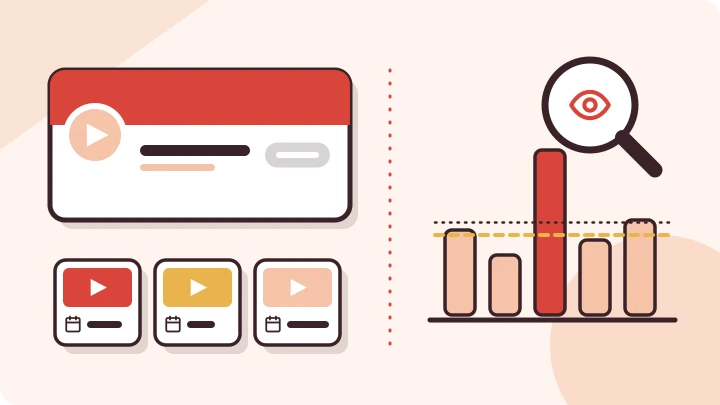
How to Analyze a YouTube Channel Beyond Subscriber Count
Learn how to analyze a YouTube channel using subscribers, recent videos and typical views, with a saved MrBeast example, charts and a practical checklist.
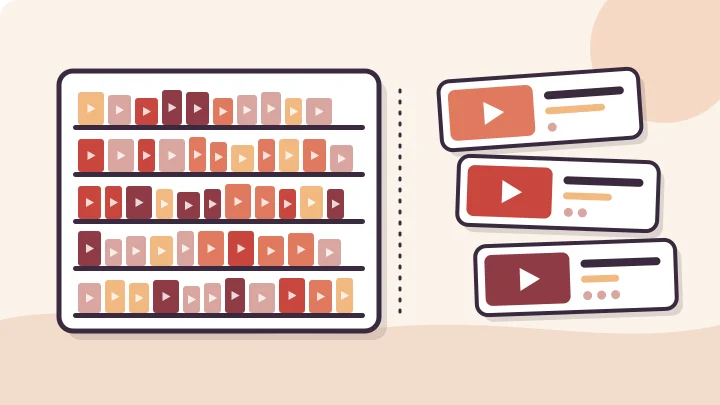
YouTube Channel Views vs Recent Video Views: Compare the Right Numbers
A big channel total and a small recent upload sample tell different stories. Learn which number fits your decision, with a worked comparison and a missing-data example.
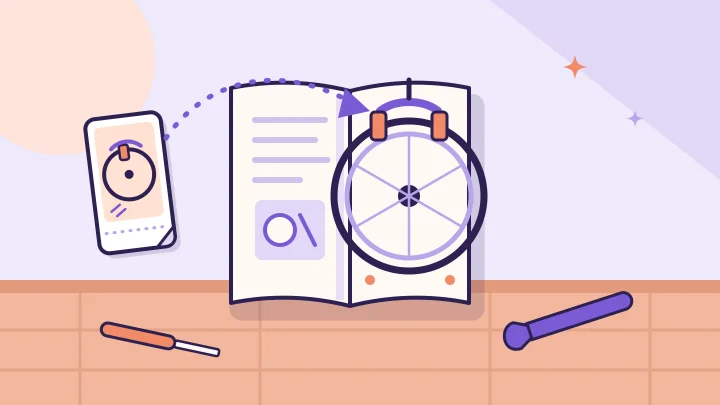
How to Add a Related Video to YouTube Shorts
A Short can show the fix while a longer video explains the setup. Here is how to link the two, choose the right destination and check the result honestly.